“This Phone Number Cannot Be Used for Verification”: What Google Means and 6 Fixes
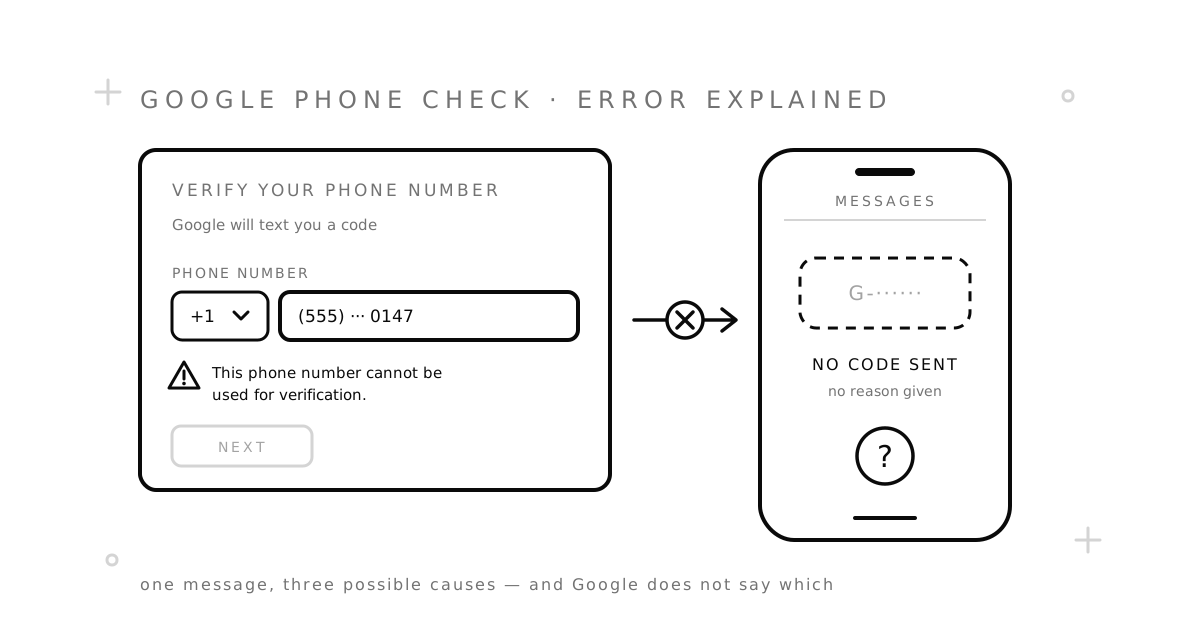
You type a phone number into Google, press Next, and get one short line back: “This phone number cannot be used for verification.” No code is sent. No reason is given. The number may be perfectly real, and it may work fine for everything else you use it for.
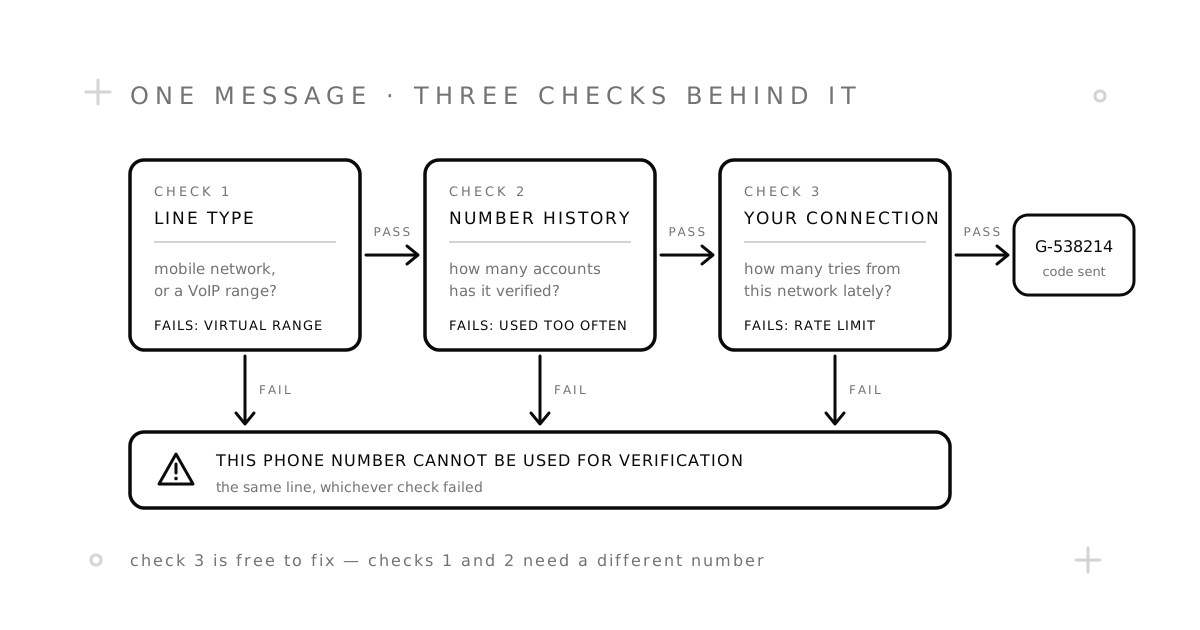
The message is vague on purpose. Google runs a few checks on every number and shows the same line whichever one fails. This guide explains what those checks are, then gives six fixes in order of effort. Start at the top and stop as soon as one works.
What Google is telling you
The message does not mean the number is broken, and it does not mean your account is banned. It means Google will not send a code to this number, from this connection, right now. Any one of those three parts can be the problem.
You will usually meet it in two places: when you create a new Google account, and when you add or change the phone number on an account you already have. The causes and the fixes are the same in both.
Google also has more specific messages that are easy to confuse with this one. If it says the number’s format is not recognized, that is a typing problem — fix 1 below. If it says the number has been used too many times, Google is naming the cause for you — go straight to fix 5.
What sets off the error
Three causes cover almost every case.
1. The number has been used too many times
Google limits how many accounts each phone number can create — its own help page says so, as protection against abuse. Past that limit, the number stops working for new accounts. Google does not publish the figure, and it changes, but it is small. This is the usual cause with shared numbers: a family phone that has already set up several accounts, a work line, a recycled number a previous owner used, or a free public number that many people have typed into Google before you.
2. The number sits in a virtual range
Every phone number belongs to a block, or range, that is assigned to a carrier. Google can look up who owns the block and what kind of line it is without ever texting the number. Internet-based (VoIP) ranges — the kind behind most free texting apps — are refused far more often than numbers on real mobile networks. Google also grows wary of ranges it has seen used for large numbers of sign-ups, so a range that worked last month can stop working. Our VoIP vs. non-VoIP guide explains how that lookup works, and how to tell if a number is VoIP shows you how to run the same check yourself.
3. Too many attempts, too fast
Google rate-limits the people asking, not only the numbers. Several failed tries in a row, a few new accounts from the same browser, a VPN, or a busy shared network (an office, a dorm, café Wi-Fi) all make your connection look risky. Once that happens, Google may refuse the next number you try however clean it is. This is the cause people miss most, because the error text is identical and they blame the number.
6 fixes, in order of effort
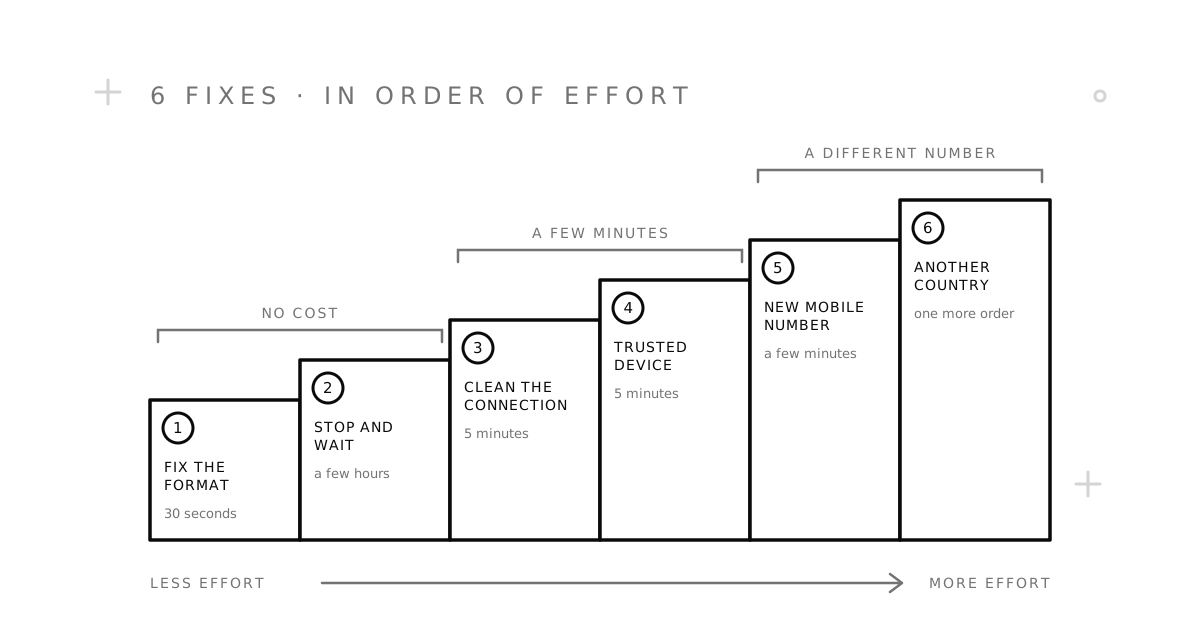
Work down the list. The first two cost nothing, the next two take a few minutes, and the last two need a different number.
Fix 1: Check the country and the digits (30 seconds)
Pick the number’s country in Google’s dropdown, then type the number without the country code — Google adds it for you. The usual slips are a country that does not match the number, the country code typed twice (+1 1 555…), or a leading 0 kept on a number whose international format drops it. It sounds too simple, but it is the fastest thing to rule out.
Fix 2: Stop, and try again later (a few hours)
If you have pressed Next several times, every new attempt makes things worse. Close the tab and leave it. Google does not say how long a rate limit lasts; a few hours is often enough, and if it still fails, wait until the next day. It is the only real fix for cause 3, and it costs nothing.
Fix 3: Clean up your connection (5 minutes)
- Turn off any VPN or proxy.
- Open a fresh private window, or a different browser, so earlier failed attempts are not tied to the session.
- If you are on shared Wi-Fi, switch to your phone’s mobile data or hotspot.
Then try the same number once. If it goes through, the number was never the problem.
Fix 4: Use a device Google already trusts (5 minutes)
Google is more relaxed on a phone it has seen for a while. To create an account, open the Gmail app on Android or iPhone, tap your profile picture, then Add another account → Google → Create account. To add a number to an existing account, do it from a device you have been signed in on for a long time. On a trusted device Google sometimes drops the phone step altogether — look for Skip before typing anything. Our Gmail without a phone number guide covers that route in detail.
Fix 5: Use a different number on a mobile network (a few minutes)
If fixes 1–4 did not help, the number itself is the problem: it has been used too often, or it sits in a range Google refuses. Retrying it will not change that. Swap it for one of these:
- A number of your own that Google has not seen — a second SIM or eSIM, for example. Our guide to getting a second number compares the options.
- A temporary number for the one code. On the Google page, pick a country and order. SMSZ numbers are virtual, but they come from mobile ranges, not VoIP. Choose the text message option if Google offers a call, and do not keep the number as your recovery phone afterwards — it goes back into the pool once your code arrives.
You pay only when the code arrives. If Google refuses the number or nothing comes through, the order cancels and your balance is returned under our refund policy.
Fix 6: Try a number from another country (one more order)
If a fresh mobile number still fails, Google may be wary of that country’s ranges right now. A different country is a different set of ranges, with a different history. It is the last step only because it means ordering again; a failed attempt on SMSZ is refunded, so it costs you time, not money. Browse available countries and pick one you have not tried.
What not to do
- Do not keep pressing Next. Each retry on a refused number feeds the rate limit and turns one problem into two.
- Do not use free public numbers. A public number has almost certainly been used for Google many times already, and anyone can read the code it receives.
- Do not leave a one-time number as your recovery phone. Once it is released, the next person to get it could receive your recovery codes. Use a recovery email and an authenticator app instead.
Common questions
How long does Google block a number?
Google does not say. A rate limit on your connection often clears within a day. A number that has hit the reuse limit does not recover on any useful timescale — use a different one.
Why did the same number work yesterday?
Either it crossed the reuse limit since then, or your connection is now rate-limited. Try fixes 2 and 3 before you replace the number.
Does Google accept virtual numbers?
Some. Google refuses most VoIP ranges, including many free texting apps. Virtual numbers that sit on mobile networks usually pass, although no provider can promise every range will work every day.
Can I skip the phone number step completely?
Sometimes. Google does not ask everyone, and on a trusted device it often shows a Skip link. When it insists, the code can go to any number that receives SMS — it does not have to be yours.
Need a number now? Get one on the Google page, or read how SMSZ works first.
Resources
- Verify your account (Google Account Help) — Google’s own page for this error. It confirms the limit on accounts per phone number.
- Create a Google Account (Google Account Help) — the official sign-up steps.
- Set up recovery options (Google Account Help) — add a recovery email and phone, and how long changes take.
- Turn on 2-Step Verification and Sign in with backup codes (Google Account Help) — keep the account safe without depending on a number.
- Fix common issues with 2-Step Verification (Google Account Help) — includes what to do when a code does not arrive.
- Line Type Intelligence (Twilio docs) — how number lookups tell mobile, fixed VoIP and non-fixed VoIP apart.